Integrating Tagnet with Your Systems
Tagnet is built to connect with the systems you already run: your ERP, your warehouse or manufacturing system, your label and print software, or a custom application. Tagnet exposes its capabilities through an open REST API, served by the same underlying services that power the web portal.
Today the API focuses on the catalog and inventory: creating and reading the products and assets you track, commissioning tags, recording movements, and reading status and history. It does not yet cover every corner of the portal. The surface is growing toward that, but the core inventory lifecycle is already yours to drive from your own systems.
For the exact requests, fields, and responses, use the interactive API reference (Scalar). It is generated live from your own Tagnet instance, so it never falls out of date. Administrators open Scalar with Open API reference on the Overview tab of the Integrations page, which also has Create an API key and a link back to this guide; it is not exposed publicly. This guide stays at the level of concepts and workflows on purpose, so it stays accurate as the API grows.
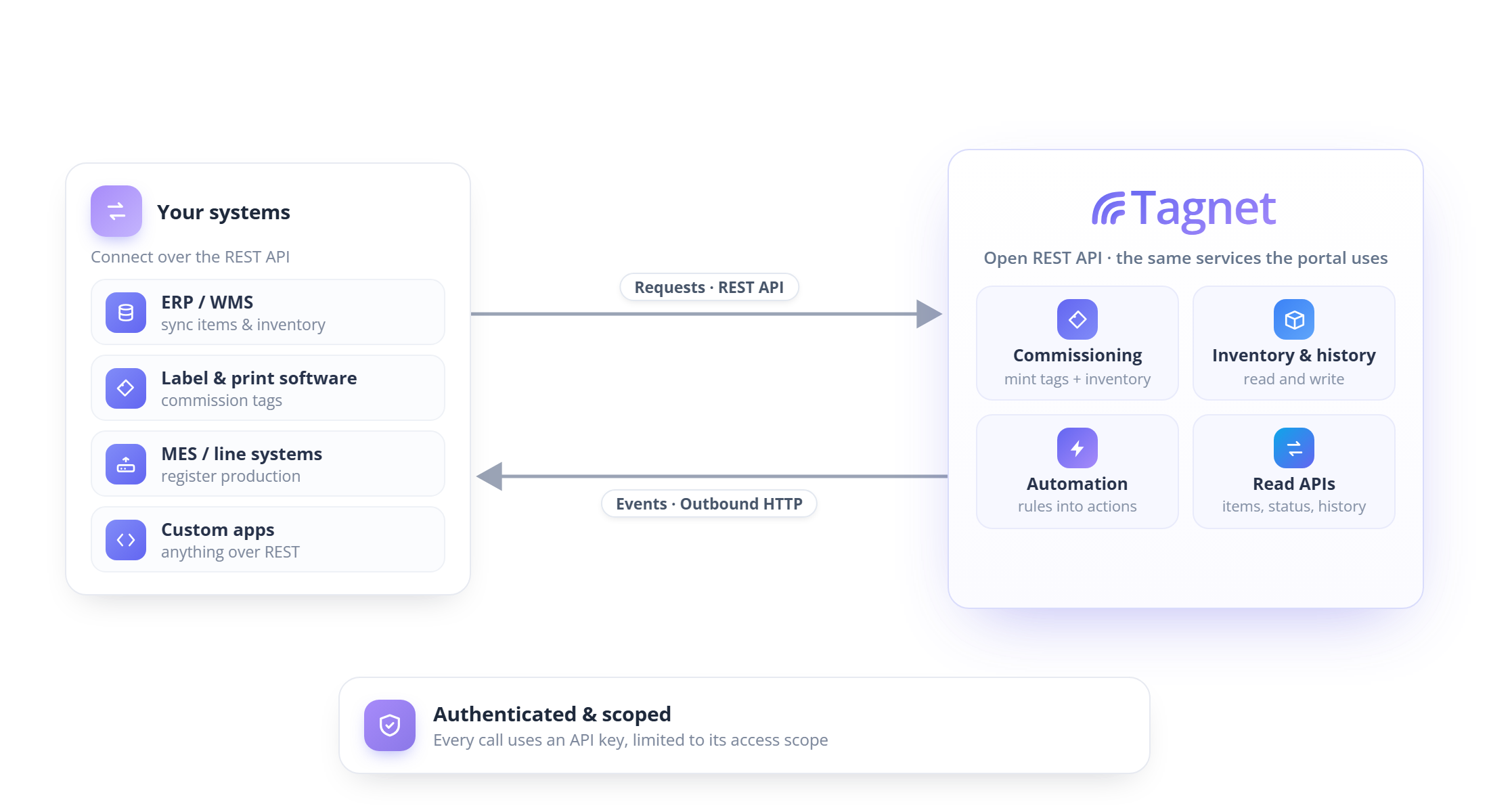
Two directions of integration
An integration usually moves in one or both directions.
- Bringing data into Tagnet. Your systems tell Tagnet about the physical world: commission new tags, create or update your product catalog, and read back inventory, history, and status. This is how physical items become live, tracked inventory.
- Pushing data out of Tagnet. Tagnet tells your systems what happened on the floor: when a movement is confirmed or a rule fires, Tagnet can send a formatted HTTP call to your ERP, WMS, or any endpoint you choose. You configure this in workflows, not in code. See Sending data out of Tagnet.
Most integrations start with one well-defined job, for example "when we print a label, register the tag in Tagnet," and grow from there.
How your systems connect
Every integration call is authenticated with an API key rather than a user login. A key carries a role that decides what it may do, and an access scope that decides which data it may see and change, for example a single site or department. The role you choose maps directly to an API key role:
- Read-only (
ApiClient) is enough for reporting or syncing data out of Tagnet. - Add inventory (
ApiInventory) can commission tags, map them, and place them, but cannot change your catalog. This suits a print or production station. - Manage the catalog (
ApiIntegration) can also create and edit items, types, and locations. This suits a system that owns product definitions.
Matching the key to the job keeps each integration least-privileged, which is easier to audit and safer if a key is ever exposed. See the API Keys guide for how to create keys, assign scopes, and the exact permissions each role grants, and the Users, Roles & Access Scopes guide for how scopes segment your data.
The data model
Before you commission anything, it helps to know how Tagnet organizes what you track. The hierarchy is small.
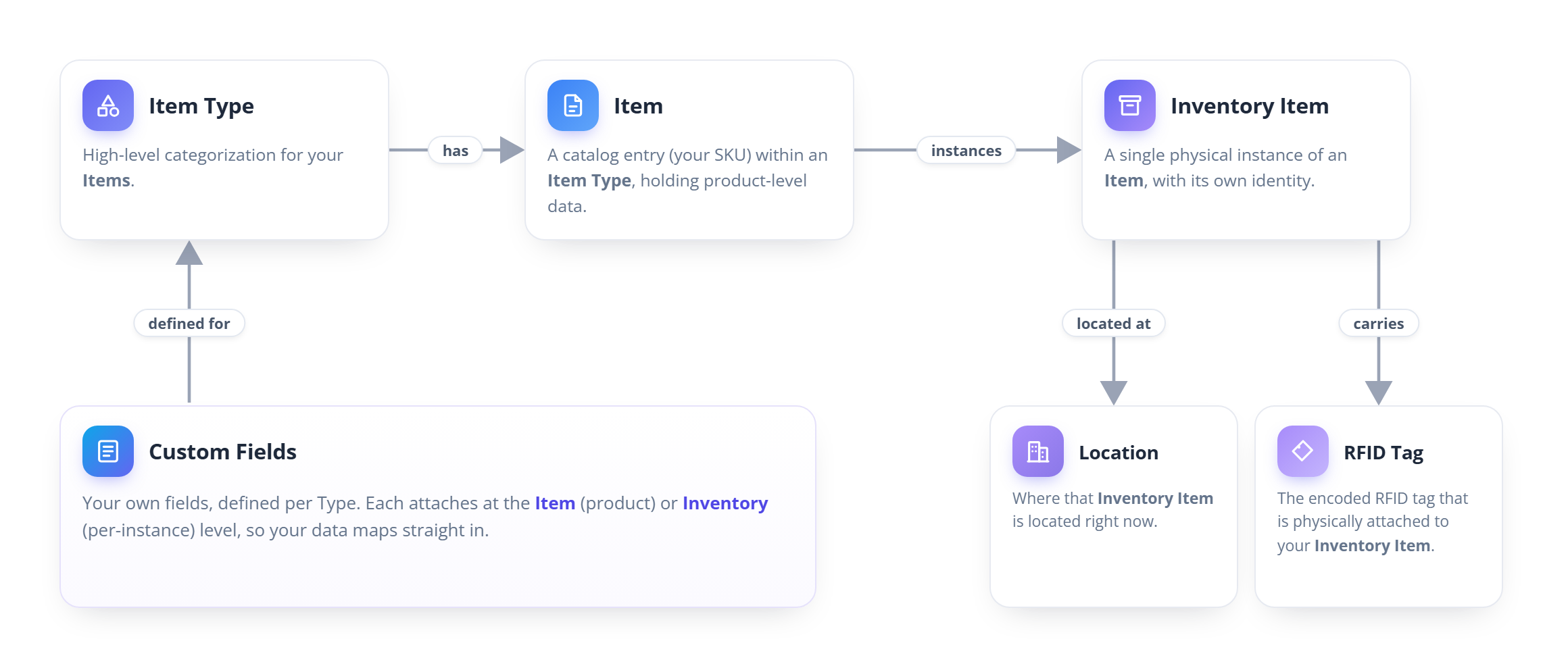
- Type groups items that share a shape, for example "Pallet" or "Transformer." A Type decides which custom fields apply and how identifiers are assigned: the instance-id and EPC strategy that every item of the type inherits.
- Item is one catalog entry, identified by your own SKU, within a Type. It holds the product-level information shared by every unit.
- Inventory Item is a single physical instance of an Item: where it is, the tag it carries, and any per-instance information.
- Location is where an inventory item currently sits.
- Tag (EPC) is the RFID credential on an inventory item, which can be retired and reissued without changing the instance.
Custom fields are how you map your own data into Tagnet. You define them once per Type and choose whether each applies at the Item level (product specifications shared by all units, such as a treatment class or a rating) or the Inventory level (per-instance values, such as a serial number or an install date). Your integration then sends those fields by their keys when it creates items and commissions inventory, so your existing data lands in the right place with no schema changes on our side. See the Custom Fields guide to define them.
The catalog-then-commission model
The most common inbound integration is commissioning: adding inventory through the API and linking it to RFID tags. Three ideas make it work.
- Catalog item. The template described above, identified by your own SKU. You create it once and reuse it.
- Instance. A single physical thing of that kind, with a durable identity that stays with it for life, even if its tag is later replaced.
- Tag (EPC). The id encoded on the RFID tag attached to an instance. It is a credential that can be retired and reissued. The instance identity does not change when the tag does.
On each item type you decide, up front, where its instances' identity and tag id come from: either your system supplies the value, or Tagnet generates it from a numbering sequence you configure. Every item of that type inherits the choice, so you set it once per type rather than per item. That is what lets one commission call work whether you bring your own serial numbers and EPCs or let Tagnet mint them for you. If a type is left on the generator's Scope default setting, the scope you send on the commission request is what decides which site's sequence mints the values, so one shared type can serve every site's batches with its own numbering. See the Sequence Generators and Inventory Item Lifecycle guides for the identity model in depth.
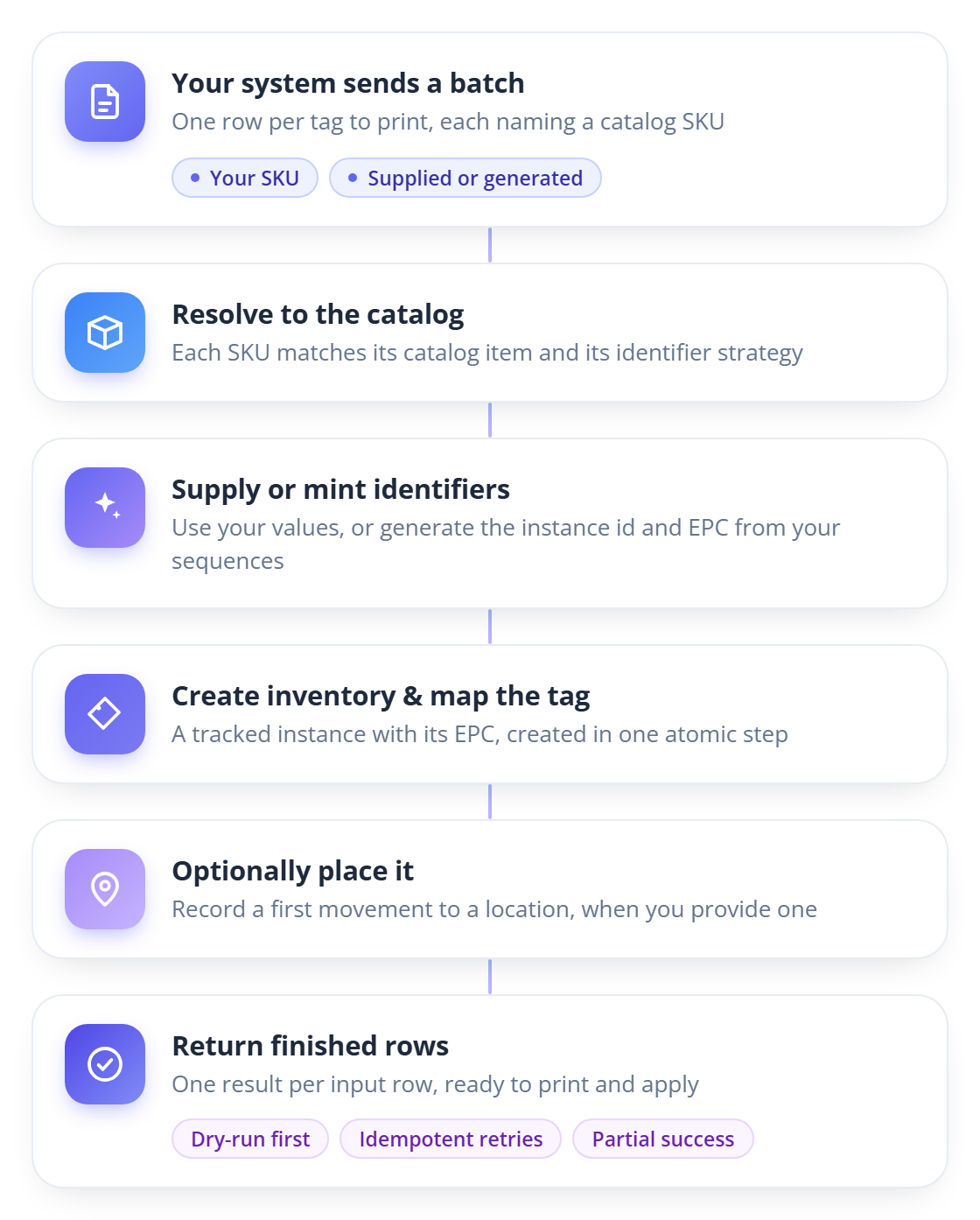
A commissioning integration follows the same path every time:
- Provision the catalog so the SKUs you will commission already exist, each with its identifier strategy set.
- Validate (optional) the batch as a dry run to catch problems before anything is created, which is useful while building the integration or when you expect data issues.
- Commission the batch: Tagnet creates the instances, maps the tags, and optionally places the items, then returns a result row for each input row for you to print.
- Read back current status or history whenever you need it, either from your integration or from the Commissioning Log page in the UI.
Building an integration you can trust
A few Tagnet features exist specifically to make integrations safe to operate at scale.
- Safe retries. Every commission batch carries a key you choose. If a network blip leaves you unsure whether a batch went through, send it again with the same key: Tagnet returns the original result instead of creating duplicates. Use a stable key from your own system, such as an order or job id.
- Dry runs. You can validate a batch without creating anything. Tagnet checks every row (does the SKU exist, are the codes valid, would the tag id clash) and tells you what would happen, so you are not deleting test records after every failed attempt.
- Partial success. A batch does not fail as a whole because one row is wrong. Each row reports its own outcome, so your system can print the good ones and fix the rest.
- Batch size limits. Each commission call has a maximum row count, set by the Commission / Limits policy (default 500, hard ceiling 2000). Design your integration to chunk large batches into multiple calls, each with its own batch key. The batch-size limit and the commission batch history retention window are both configurable by an administrator in the Policies page.
Designing around these from the start turns a fragile script into a dependable integration. For a complete walkthrough of every failure mode, including the exact idempotency rules, how to recover failed rows from a partial success, and how to reprint from history, see Commissioning Reliability and Retry Handling.
Sending data out of Tagnet
Inbound integration is your system calling Tagnet. Outbound is the reverse: a reader reports tags on the floor, and your ERP, WMS, or another HTTP service needs to hear about it, for example "pallet 1042 just left the dock." You build this in the portal, with no code, from a few pieces that each do one job.
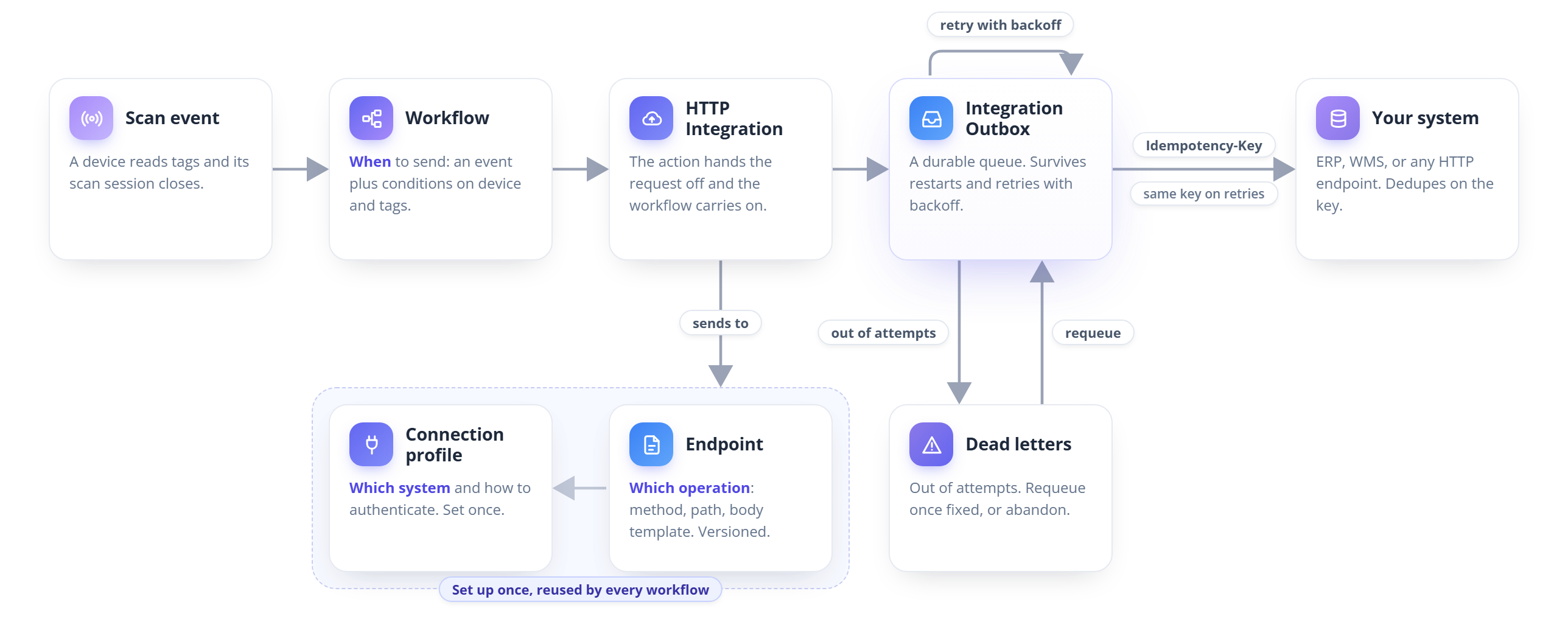
The pieces and why they are split
- Scan event and workflow: when to send. A device read becomes a scan event when its scan session closes. A workflow matches that event against its conditions (which devices, which tags) and runs its actions. The workflow owns the question "should this event reach my ERP?" and nothing else.
- Connection profile: which system, and how to authenticate. One profile per external system, holding its base URL and credentials. Rotate a password or move from test to production in one place, and every workflow keeps working. See Connection Profiles.
- Endpoint: which operation. One named operation on that system, such as "Post movement" or "Ship notice": its method, path, headers, and a body template. An endpoint is the contract with the receiver. It is versioned with rollback, and many workflows can point at the same one. See Integration Endpoints.
- Integration Outbox: the delivery guarantee. A durable queue that holds each request until your system accepts it. See Integration Outbox.
The split mirrors how real integrations change. A system has one login but several operations, and an operation is often called from more than one workflow. When a credential rotates, you edit the connection profile. When the receiver changes its payload, you edit the endpoint and the version history records who changed it. When the business wants a different trigger, you edit the workflow. Nothing else moves.
Durable or immediate
Two workflow actions can call an endpoint, and they behave differently.
- HTTP Integration (durable) hands the request to the Integration Outbox and the workflow continues at once. Later actions cannot see a response, because there may not be one for hours. If your system is down, Tagnet keeps retrying in the background. The action's status is Queued, which means the request was safely stored for delivery, not that your system has received it. It authenticates only through a connection profile.
- HTTP Request (immediate) calls the endpoint during the workflow run and waits for the reply, so later actions can use the response. If the endpoint is unreachable, the action fails after its own short retry setting, and the reader's workflow processing waits while it runs.
For telling your ERP or WMS that something happened, use the durable action: an event should not be lost because the receiver was down for maintenance when the tag was read. Use the immediate action only when the workflow needs the answer right now, such as a lookup that feeds a later step. The Integration Outbox guide compares them side by side.
Important: A workflow's On Failure run condition after a durable action only sees whether Tagnet could queue the request, never whether the later delivery succeeded. To catch a receiver that is down, watch the Outbox, not an On Failure chain. See Run conditions after a durable action.
What the outbox guarantees
The outbox stores the request, already rendered from the endpoint's body template, before the workflow finishes, so a queued delivery survives an application restart or an outage on either side.
- Retries with backoff. A background engine sends each request. Timeouts, connection errors, and server errors are retried with a growing delay. By default Tagnet makes up to 15 attempts over roughly 8 hours, long enough to ride out a routine overnight maintenance window. A clear rejection such as an HTTP 400 or 404 fails immediately instead of wasting the retry budget. Retry behavior is set once for every durable action in the Integration / Outbox policy, see Policies.
- Dead letters. When the attempts run out, the delivery is dead-lettered: it stops retrying and waits for an administrator. Once the cause is fixed, Requeue resends the stored request unchanged. If it must never be sent, Abandon writes it off with a recorded reason.
- Resends are safe to detect. Every delivery carries an idempotency key, described next.
The idempotency key
Delivery is at-least-once. If your system processes a request but the reply is lost, Tagnet cannot tell that from a request that never arrived, so it sends again. To let the receiver recognize that, every attempt for a given delivery, including retries and a manual requeue days later, carries the same value in an Idempotency-Key header. Tagnet generates the key once, when the request is queued, and never changes it.
Share this with whoever owns the receiving system: it should remember the keys it has already processed and ignore a repeat instead of, say, booking the same movement twice. The header name is configurable in the Integration / Outbox policy. Only durable deliveries carry it. An HTTP Request (immediate) action does not, so a receiver that must not process duplicates should deduplicate on a field in the request body.
Where to watch it run
Everything outbound lives on the Integrations page (hub icon in the navigation), as tabs.
- Connection Profiles: each profile's detail page shows its deliveries over the last 7 days (with a link to Analytics already filtered to that profile), its Endpoints, and a Used by table of the workflow actions that depend on it.
- Outbox: every delivery, newest first, with a status summary across the top. Filter to the failed or dead-lettered ones, open a delivery to see the exact request and the receiver's response, and use the Actions menu on the status row to requeue or abandon everything the current filter matches.
- Analytics: delivery volume, failure rate, endpoint response time, and how long deliveries wait in the queue, over the last hour to seven days.
- Diagnostics: what the delivery engine is doing right now, including queue depth and whether Tagnet has paused sending to a host that keeps failing.
Managing profiles and endpoints is an administrator task, and the Outbox, Analytics, and Diagnostics tabs also require the Manage Policies permission. A workflow's execution detail page shows each durable action's actual delivery outcome for users with the Manage Policies permission.
Setting it up
- Create a connection profile for the target system, with its base URL and authentication. If the system needs no credentials, use authentication None.
- Add an endpoint for the operation you want to call, with its method, path, and body template.
- Test it with Test endpoint, first with sample data, then with real data once the shape is right. A test is a single attempt, never queued, and it needs no workflow. See Testing an Endpoint.
- Point a workflow action at it. Add an HTTP Integration (durable) action to a workflow, pick the endpoint, and save. See HTTP Integration (durable).
- Watch the Outbox. Trigger a scan, confirm the delivery shows as sent, and check that your system recorded it with its idempotency key.
Where to go next
- For exact endpoints, request shapes, and field-level detail, open Scalar from the Integrations Overview tab (administrators only). It is generated live, which is why this guide does not repeat it.
- See what each batch created and diagnose failed rows in the UI with the Commissioning Log guide.
- Handle partial failures, retries, and reprints with the Commissioning Reliability and Retry Handling guide.
- Set up credentials with the API Keys and Users, Roles & Access Scopes guides.
- Map your own data with the Custom Fields guide.
- Understand identifiers and lifecycle with the Sequence Generators and Inventory Item Lifecycle guides.
- Manage your catalog with the Items guide, and send data out of Tagnet with the Workflows guide.
- Authenticate outbound calls to your ERP or WMS with the Connection Profiles guide.
- Set up and operate outbound delivery with the Integration Endpoints and Integration Outbox guides, starting from Sending data out of Tagnet.